YQX28-8 1280*800 8 Inch IPS HDMI LCD Display with 5-Point Capacitive Touch Screen
Product Feature
- 8.0 inch IPS high-definition display screen
| The viewing Angle is large | true color | picture quality is excellent |
| HD vision | The display is very delicate |
| Tempered glass cover | Hardness up to 6H, more durable and more scratch resistant |
- High sensitivity capacitive touch screen
| Accurate touch | Support up to 5 touch points |
| HD input | Can be used as HDMI display |
- Support multiple device access
| Can be connected to mainstream development boards such as raspberry pie, banana PI and BB black |
| Can be connected to PS4, XBOX360, switch and other mainstream game consoles |
| Can be connected to mainstream TV box and digital camera(display only) |
- Support multiple system display
| Support raspbian, Kali Linux, Ubuntu, Kodi, win10 IOT and other systems, touch free drive |
| Support win7/8/10/11 and other systems, touch drive free |
- Passed CE and ROHS certification
Technical Specifications
| Size | 8.0 inch | Screen Type | IPS Screen |
| SKU | MPI8008 | Resolution | 1280*800 dots |
| Backlight Adjustment | Key Switch Adjustment | Touch | 5 point capacitive |
| Power | MicroUSB (5V) | Module overall power | 3.79W(100% brightness) |
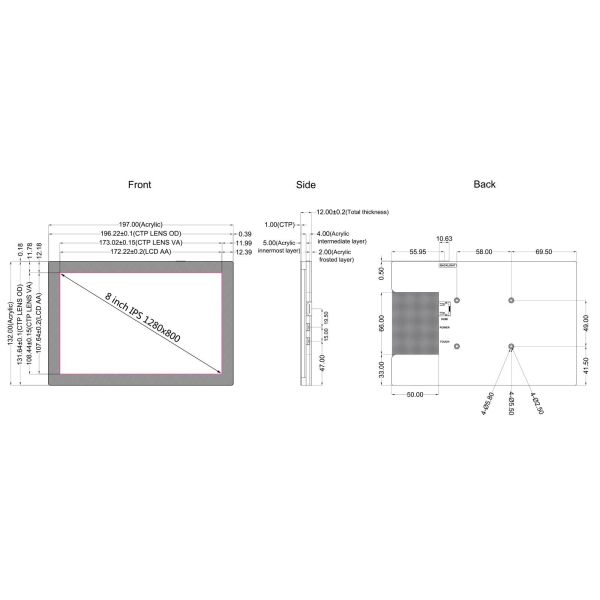
| Dimensions | 197*132*12mm | Video Input | HDMI |
| Audio Output | 3.5mm Audio Interface | Packaging size | 234*164*62 |
| Weight | 610 g (including packaging) |
|
|
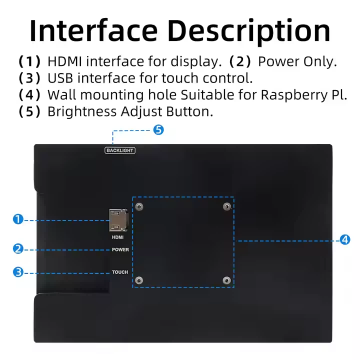
Interface Diagram
Installation Guide
Raspberry Pi Installation
1. Install 4 copper posts
2. Place Raspberry Pi and install 4 screws (M2.5)

Stand Installation

Connection Guides
Raspberry Pi 4 Connection

Raspberry Pi 3 Connection

Important Note: Always connect cables before powering the Raspberry Pi. Use 2.5A power supply for Raspberry Pi 3B+, 3B, 2B, B+, A models. Use full 3A power supply for Raspberry Pi 4B.
PC/Laptop Connection

System Setup Instructions
1. Download Official Images
- Raspbian: Download (Username: pi, Password: raspberry)
- Ubuntu Mate: Download (Set credentials after startup)
- Kali Linux: Download (Username: kali, Password: kali)
- Retropie: Download (Username: pi, Password: raspberry)
2. Burn Image to SD Card
1. Download and install required tools:
2. Format SD card using SD Card Formatter
3. Burn image using Win32 Disk Imager

3. Modify Config.txt File
Add the following to the end of config.txt file:
hdmi_force_edid_audio=1max_usb_current=1hdmi_force_hotplug=1config_hdmi_boost=7hdmi_group=2hdmi_mode=87hdmi_drive=2display_rotate=0hdmi_cvt 1024 600 60 6 0 0 0
4. Insert SD Card

5. System Operation
After completing all connections, power on the Raspberry Pi to see display output with full touch functionality.