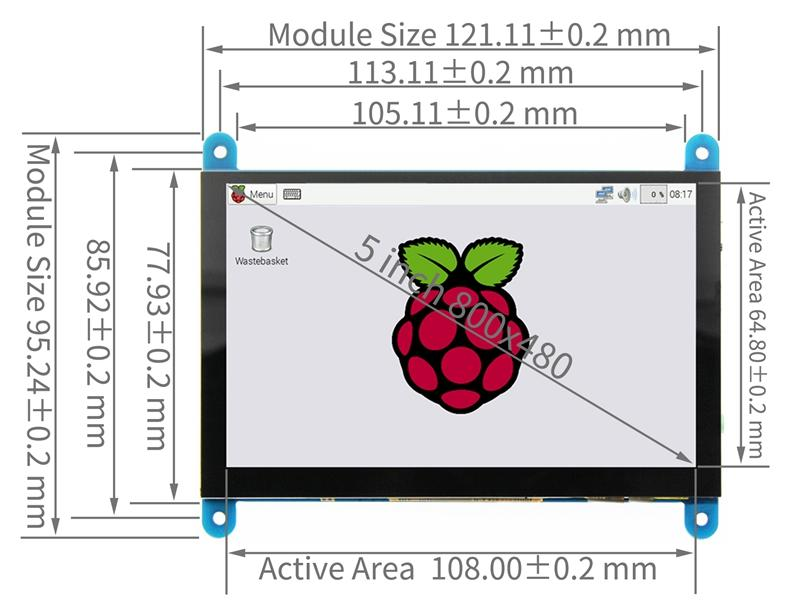
Size: 5.0(inch) SKU: MPI5001
Resolution: 800 × 480(dots)
Touch: 5 point capacitive touch
Audio output: Support
Active Area: 108.00*64.80 (mm)
Dimensions: 121.11*95.24 (mm)
Rough Weight(Package containing): 259 (g)
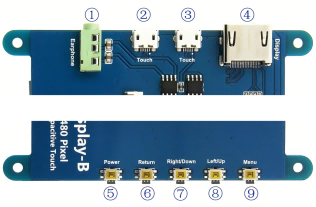
① Earphone: 3.5mm Audio output interface
②&③Touch: USB connector (For power supply and touch output, the functions of the both
are the same, can just use one of them)
④ Display: HDMI interface (For connecting motherboard and LCD monitor)
⑤ Power: Controls the backlight turned on and off to save power
⑥ Return: Return (Only valid in the OSD Settings menu)
⑦ Right/Down: Direction Right/Down(Backlight shortcut key)
⑧ Left/Up: Direction Left/Up(Backlight shortcut key)
⑨ Menu: Open the OSD / Select key (Only valid in the OSD Settings menu)
【How to use with Raspberry Pi OS】
Step 1, Install Raspberry Pi OS image
1) Download the latest image from the official download.
2) Install the system according to the official tutorial steps.
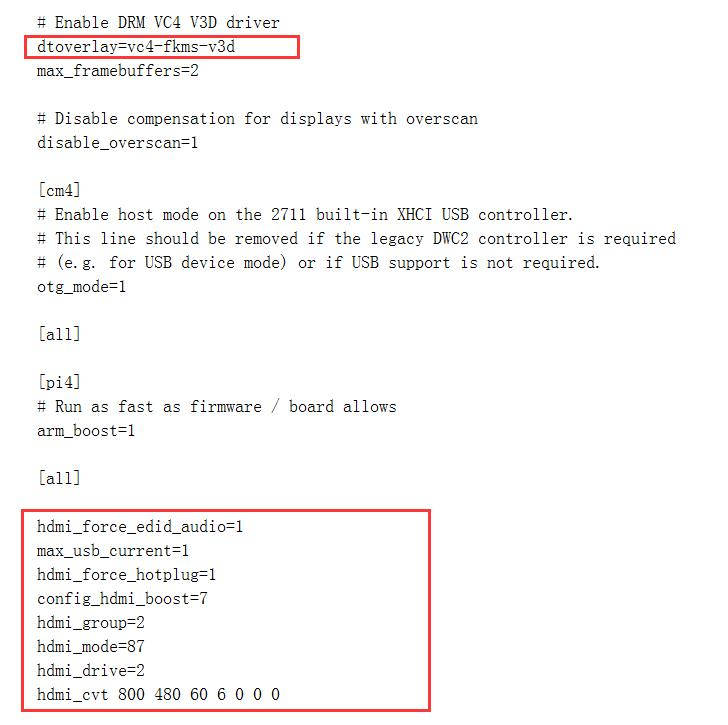
Step 2, Modify the “config.txt”
1) After the programming of Step 1 is completed, open the “config.txt” file of Micro SD Card root directory, Find
dtoverlay=vc4-kms-v3d
and change it to:
dtoverlay=vc4-fkms-v3d
2) Add the following code at the end of the file “config.txt”, save and eject Micro SD Card safely:
max_usb_current=1
hdmi_force_hotplug=1
config_hdmi_boost=7
hdmi_group=2
hdmi_mode=1
hdmi_mode=87
hdmi_drive=2
hdmi_cvt 800 480 60 6 0 0 0
Step 3, Insert the Micro SD Card to Raspberry Pi, connect the Raspberry Pi and LCD by HDMI cable; connect USB cable to one of the four USB ports of Raspberry Pi, and connect the other end of the USB cable to the USB port of the LCD; then supply power to Raspberry Pi; after that if the display and touch both are OK, it means drive successfully.
【How to rotate display direction】
Step 1,If the driver is not installed, execute the following command (Raspberry Pi needs to
connected to the Internet):
| sudo rm -rf LCD-show git clone https://github.com/goodtft/LCD-show.git chmod -R 755 LCD-show cd LCD-show/ sudo ./MPI5001-show |
After execution, the driver will be installed.
Step 2,If the driver is already installed, execute the following command:
| cd LCD-show/ sudo ./rotate.sh 90 |
After execution, the system will automatically restart, and the display screen will rotate 90 degrees to display and touch normally.
( ' 90 ' can be changed to 0, 90, 180 and 270, respectively representing rotation angles of 0 degrees, 90 degrees, 180 degrees, 270 degrees)
If the ‘rotate.sh’ prompt cannot be found, Back to Step 1 to install the latest drivers.
【How to use as PC monitor】
connect the computer HDMI output signal to the LCD HDMI interface by using the HDMI cable
Connect the LCD's USB Touch interface (Either of the two Micro-USB) to the USB port of the device
If there are several monitors, please unplug other monitor connectors first, and use LCD as the only
monitor for testing.